


CFA & FRM Approved Calculators Guide 2026: Complete Setup & Functions
Others

CFA & FRM Approved Calculators Guide 2026: Complete Setup & Functions

Aswini Bajaj
05-02-2026
Digital illustration with the headline CFA & FRM Approved Calculators Guide with two people holding financial calculators

Choosing the right finance calculator is non-negotiable for CFA and FRM because the exam bodies only allow specific business calculator models, and scientific calculators are not permitted. This guide shows which calculator to buy, what settings to check (TVM clearing, END vs BEGIN, decimals), and which functions actually save you time on exam day.

Key Takeaways

    • CFA (and CIPM) allow only TI BA II Plus (including Professional) and HP 12C family models (Platinum, Anniversary, and Prestige editions) with no exceptions.
    • FRM allows TI BA II Plus (including Professional) and HP 12C family, and also HP 10BII / 10BII+ / 20B (officially listed by GARP).
    • A backup approved calculator is allowed for CFA, and loose batteries + a small screwdriver are permitted (manuals are not).
    • The highest-return exam skills include clear TVM/CF, correct sign convention, END vs BEGIN awareness, and fast use of TVM + CF/NPV/IRR + ICONV.
    • You don't need to master every menu, just focus on the functions you repeatedly use in valuation, fixed income, and corporate finance-style questions.

Most candidates choose the TI BA II Plus because it's straightforward and matches how most prep providers demonstrate keystrokes. If you already use HP 12C comfortably, it's also allowed. Just don't switch late because speed and muscle memory matter more than the brand.

Officially Approved Calculators Quick Reference Table
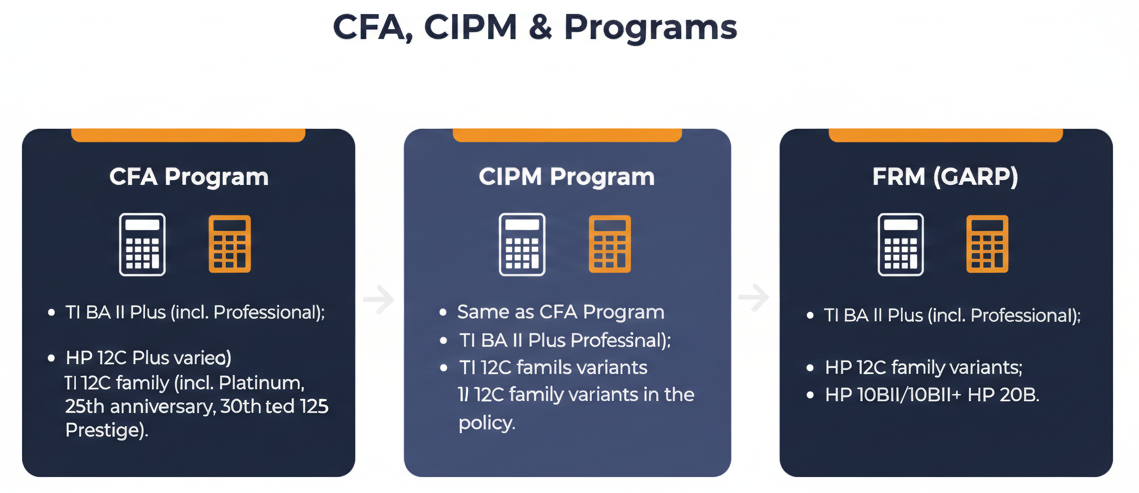
Infographic on CFA, CIPM, & FRM approved calculators

⚠️ Note

Check out official CFA calculator policy and FRM exam policies (calculator section) for detailed info.

Which Calculator to Choose for CFA/FRM Exams?

If you're buying your first calculator for CFA, FRM, or CIPM, choose a calculator based on your speed of learning and comfortability. It will help reduce silly errors under time pressure during the exam. Here's a quick overview on the commonly used calculators:

TI BA II Plus (Standard) - Best Default for Most Candidates

    • Price: Around ₹3,800 - ₹4,500 (Indian market)
    • Body: Plastic
    • Functions: Sufficient for all CFA/FRM calculations
    • Recommendation: Best option; cost-effective and widely used

TI BA II Plus (Professional) - Good (Not Necessary for Most)

    • Price: Around ₹5,600 - ₹6,300 (more expensive than standard)
    • Body: Metal finish
    • Extra Functions: Net Future Value (NFV), Discounted Payback Period
    • Note: These extra functions are not essential for CFA/FRM exams. They can be calculated manually in 1-2 extra steps on the Standard version.

HP 12C

    • Price: Varies widely by variant ₹4,700 - ₹14,500 (Classic, Standard, Platinum, Anniversary)
    • Body: Varies by variant
    • Functions: Sufficient for CFA calculations; commonly used by those comfortable with HP workflow
    • Recommendation: Choose HP 12C only if you already use it confidently; otherwise, TI BA II Plus is the easier default for most candidates

HP 10BII / 10BII+ / 20B - FRM Only

    • Price: Varies by model ₹2,165 - ₹13,500
    • Body: Varies by model
    • Functions: Suitable for FRM exam use (as per approved list), includes core business-finance calculator functionality depending on model
    • Recommendation: Consider these only if you are preparing for FRM only; if CFA is also in your plan, prefer TI BA II Plus or HP 12C to stay CFA-compliant

Finance Exams Policy and Other Specifics

Finance exams have strict calculator rules, and it's worth reading the official policies once so you don't get surprised at the test center. The key is simple: bring an approved model, avoid anything that could be treated as "notes," and set up your calculator in advance so you're not troubleshooting under time pressure. Here's what the official policies dictate:

    • CFA policy states calculator covers, keystroke cards, and loose batteries are permitted in the testing room; instruction manuals are not.
    • CFA policy also states you may keep a small screwdriver with you if needed to replace BA II Plus batteries.
    • Many guidance pages summarizing the policy also note that a backup approved calculator is allowed, as long as it's one of the permitted models.
    • Similar to CFA and FRM, CIPM's exam policy allows the same calculator models specified above.
    • CFA Institute only authorises TI BA II Plus (incl. Professional) and HP 12C models.
    • Between TI BA II Plus and TI BA II Professional, the professional models can add Net Future Value (NFV) and Discounted Payback Period. Alternatively, the BA II Plus is sufficient for all CFA/FRM needs and most widely used by exam candidates.

TI BA II Plus Calculator Durability and Battery Life

    • TI calculators can last 10+ years easily.
    • Battery replacement: Changing it every 3 - 4 years is recommended. Check out our video on TI BA 11 Plus Calculator for more battery insights.
    • Calculator replacement: You should replace after 7 - 8 years (due to general decline in product durability).
    • Battery failure during exams is rare. Many students have used the same calculator for 8 - 10 years without a replacement.

The Basic Buttons
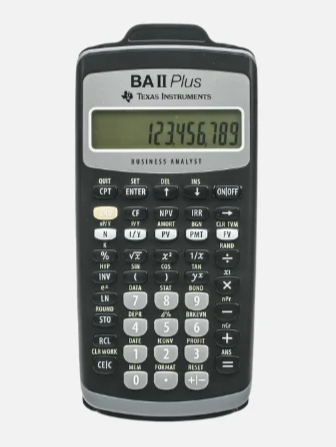
Texas Instruments BA II Plus Finance Calculator

1. ON।OFF Button

Function: Turns the calculator on or off.

Notes: Memory is retained even if the calculator is switched off for days or weeks.

2. CE | C Button (Clear Work)

Function: Clears the current calculation from the screen.

Notes: Does not affect stored memory.

Example: Input: 50 + 6 → Press CE।C → Screen clears.

3. Backspace

Function: Deletes the last digit or decimal point.

Example: Input: 98.2 → Press backspace → 98. → Press again → 98 → Press again → 9 → Press again → empty.

4. Arrow Keys

Function: Scroll through previous entries, menus, or results.

5. 2nd / Shift Key

Function: Access secondary functions printed above the keys.

Examples: × normally multiplies → 2nd → × → factorial (!) (above '×'), = normally gives result → 2nd → = → recalls last answer (ANS)

6. Enter Key

Function: Confirms or stores values in memory.

7. Plus/Minus (±)

Function: Changes the sign of a number.

Example: Input: 5 → Press ± → Output: -5

Notes: Does not perform addition or subtraction. It is used to add a negative sign before the number.

8. Memory (M0–M9)

Function: Store and recall values.

Examples: Store: STO → 1 → ENTER → Saves in memory slot 1, Recall: RCL → 1 → Retrieves value from memory slot 1

Chn-Aos, Rand, Date, Profit, Breakeven, Percentage change, Interest Conversion

1. Date Format Adjustments

The calculator supports two date formats: US format (MMDDYY), European format (DDMMYY).

Note: The calculator uses the US format by default.

How to change format: 2nd → FORMAT (above decimal), Scroll to "Date", 2nd → ENTER (toggles between US and European)

Example: US: 12.31.90 → 31 Dec 1990, Euro: 31.12.90 → 31 Dec 1990

2. Digit Separator

You can display large numbers with commas (1,000) or dots (1.000).

How to use: 2nd → FORMAT, Scroll to separator option, 2nd → ENTER

Note: 1,000 is the default setting.

3. CHN vs AOS (Operating Modes)

CHN (Chain mode): Calculates strictly left to right. AOS (Algebraic Operating System): Follows BODMAS/PEMDAS.

AOS - problematic unless you're proficient at it, keep at CHN

How to switch: 2nd → FORMAT, Scroll to CHN/AOS, 2nd → ENTER

Example: Expression: 2 + (1 − 3) ÷ 4 - AOS: 2 + (−2 ÷ 4) = 2 − 0.5 = 1.5, CHN: 2 + 1 = 3; 3 − 3 = 0; 0 ÷ 4 = 0 (Standard)

Tip: Keep the setting in CHN mode.

4. Random Function (RAND)

Generates a random number between 0 and 1.

Key Press: 2nd → RAND (above ÷)

5. Days Between Dates (DBD)

Calculates number of days between two dates.

How to use: 2nd → DATE (above 1), Enter Date 1 (e.g., 25.06.17 for 25 June 2017 in DDMMYY format), Enter Date 2 (e.g., 31.12.17 for 31 Dec 2017), Scroll to DBD → CPT

Modes: ACT (Actual days) – real calendar days. 360 (30/360) – assumes 30-day months, 360-day year. Switch using: 2nd → ENTER

Example: 25 Jun 2017 → 31 Dec 2017 = 189 days (ACT) or 186 days (360 method).

6. Profit Function

Calculates cost, selling price, and margin.

Key Press: 2nd → PROFIT (above 3)

Steps: Enter Cost → e.g., 100, Enter Selling Price → e.g., 120, Scroll to Margin → CPT → 16.67%

Reverse Use: Enter Cost = 100, Enter Margin = 20%, Compute Selling Price → 125

7. Break-Even Analysis

Determines break-even quantity or profit based on fixed cost, variable cost, and price per unit.

Key Press: 2nd → BRKEVN (above 6)

Steps: Enter Fixed Cost = 100, Enter Variable Cost per unit = 2, Enter Price per unit = 3

Calculation: Scroll to Profit = 0 → CPT → Quantity = 100 units, If Target Profit = 20 → CPT → Quantity = 120 units, If Quantity = 800 → CPT → Profit = 700

8. Interest Conversion (ICONV)

Converts between Nominal Rate (INOM) and Effective Rate (EFF) based on compounding periods.

Key Press: 2nd → ICONV (above 2)

Steps: Enter Nominal rate = 12, Scroll down [↓]→Enter Compounding periods (C/Y) = 2 →Scroll up[↑]→CPT → EFF = 12.36%, If C/Y = 4 → EFF = 12.55%, If C/Y = 12 → EFF = 12.68%

9. Percentage Change (%CHG)

Calculates percentage increase or decrease between two values.

Key Press: 2nd → %CHG (above 5)

Steps: Old Value = 100, New Value = 110, CPT → %CHG = 10%

With Periods: If #PD = 2 → %CHG per period = 4.88%

LN, CF, NPV, Payback, Period, Discounted Payback Period, IRR function

1. LN (Natural Logarithm)

Definition: Used to calculate continuously compounded returns or solve exponential growth problems.

How to Use: Input number. Press LN → gives natural log (log base e). Press 2nd + LN (e^x) → gives a continuously compounded return.

Formula: FV=PV×e^rt, r=ln(FV/PV)

Example: If 1 becomes 1.10 in one year → r=ln(1.10)=0.0953 or 9.53%.

Tips & Tricks: Remember LN means log to the base e (≈ 2.718). Use for continuous compounding and exponential finance calculations.

2. CF (Cash Flow)

Definition: Used to input multiple uneven cash flows for valuation and investment analysis.

How to Use - Entering Cash Flows (CF): Press CF → starts cash flow mode. Enter CF0 (initial investment, usually negative). Press Enter. Scroll ↓ → Enter C01, C02, … cash flows. If repeated → set Frequency (F). Example: Cash flow 200 repeated 3 times → enter C01 = 200, F01 = 3.

Tips & Tricks: Use 2nd + CLR WORK to clear previous entries. Always press Enter after each input. Frequency setting saves time for repeating values.

3. NPV (Net Present Value)

Definition: Used to calculate the present value of future cash flows minus initial investment.

How to Use: After entering CF, press NPV. Enter discount rate (i%). Example: 15 → Enter. Scroll ↓ → Press CPT → NPV displayed.

Formula: NPV= ∑ CFt/ (1+r)^t –CF0

Tips & Tricks: Enter the rate as a whole number (10 = 10%). NPV helps check if a project adds value.

4. IRR (Internal Rate of Return)

Definition: Used to find the discount rate that makes NPV = 0 for a project or investment.

How to Use: After CF entries → Press IRR. Press CPT → IRR displayed.

Tips & Tricks: Multiple IRRs may occur if cash flows alternate signs. Error messages appear if no IRR exists.

5. Payback / Discounted Payback

Definition: Payback Period (PB): Measures the time required to recover the initial investment from project cash inflows. It ignores the time value of money. Discounted Payback Period (DPB): Similar to PB, but accounts for the time value of money by discounting cash flows before calculating recovery.

How to Use: Enter cash flows as usual in the calculator. Go to the NPV Menu. Scroll down → Select Payback / DPB option. The calculator will automatically compute both PB and DPB.

Tips & Tricks: PB = Quick and simple, but ignores discounting. DPB = More accurate since it incorporates the time value of money. Useful for liquidity assessment and understanding how fast an investment is recovered.

⚠️ Note

Payback Period PB is only available in the Professional calculator.

Statistical Functions

The statistical functions allow you to enter data points (X and Y values) and perform various calculations, including: Averages, Summation, Standard deviations, Correlation, Linear regression equations

Accessing Data Input

Button: 2nd → DATA (above [7])

Purpose: Opens data entry mode to input X and Y values for statistics

How to Use: Enter x01, press ENTER, Scroll down, enter y01, press ENTER, Continue: x02, y02 … (up to 30 pairs allowed)

Example: x = {1, 2, 3, 4, 5}, y = {10, 8, 6, 4, 2}, Visual : 2nd → DATA → x01=1 → ENTER → y01=10 → ENTER …( continue)

Statistical Calculations

Button: 2nd → STAT (above [8]) → LIN equation

Outputs: n = number of data points, x̄ , ȳ = averages of x and y, sx , sy = sample standard deviations (n–1 in denominator), σx , σy = population standard deviations (n in denominator), Σx , Σy , Σx² , Σy²

Example (for x={1,2,3,4,5}, y={10,8,6,4,2}): n = 5, x̄ = 3, sx ≈ 1.58, ȳ = 6, sy ≈ 3.16

Tips & Tricks: Remember: sx > σx (since n–1 < n).

Regression Equations

The calculator supports 4 regression formats: Linear equation (y = a + bx), Logarithmic equation (y = a + b * ln(x)), Exponential equation (y = a * b^x), Power equation (y = a * x^b). Switch formats using toggle 2nd → ENTER.

STO, Round, RCL, (sin, cos, tan) & inverse, hypothesis & Depreciation

1. Round Function

Purpose: Rounds numbers to a defined number of decimal places based on the current format setting.

How to Use: Perform a calculation that results in a long decimal (e.g., 2 ÷ 3 = 0.6666...). Press: 2nd → ROUND (button above STO). The number will round according to your set decimal places.

Example: 2 ÷ 3 = 0.67 (with 2 decimal places). If multiplied by 3 → 0.67 × 3 = 2.01 (not exactly 2 due to rounding).

2. Store (STO) & Recall (RCL) Functions

Purpose: Store values for later use and recall them to avoid retyping or rounding errors.

How to Use STORE (STO): Perform a calculation (e.g., 10 × 5 = 50). Press STO. Press the memory slot (0–9) where you want to store the value (e.g., 1). Press ENTER.

How to Use RECALL (RCL): Press RCL. Press the memory slot number to recall the stored value.

Example: Store first value: 10 × 5 = 50 → STO → 1 → ENTER, Store second value: 8 + 2 = 10 → STO → 2 → ENTER, Use stored values: RCL → 1 + RCL → 2 → Result = 60

3. Trigonometric Functions (SIN, COS, TAN) & Inverses

Purpose: Solve angle-related problems. Not commonly used in finance but useful for general calculations.

Setting Angle Mode: Press 2nd → FORMAT → choose DEG (Degrees) or RAD (Radians). For finance, keep it in Degrees.

Basic Functions: Enter the angle. Press SIN, COS, or TAN.

Example: sin 30° → Enter 30 → Press SIN → Result = 0.5, tan 45° → Enter 45 → Press TAN → Result = 1

Inverse Functions (SIN⁻¹, COS⁻¹, TAN⁻¹): Press 2nd → INV → function key (SIN, COS, TAN). Enter the value → Result gives the angle.

Example: Inverse of tan 1 → 2nd → INV → TAN → 1 → Result = 45°

4. Depreciation Function

Purpose: Calculates the decrease in value of an asset over time.

Available Methods: Straight-Line (SL), Sum of Years Digits (SYD), Declining Balance, Declining Balance with Crossover, Straight-Line French, Declining Balance French

How to Use: Press 2nd → DEPR (above 4). Select depreciation method using 2nd + ENTER. Input the following: Life of the asset (years), Month to start using asset (M01), Cost of asset, Salvage value of asset, Year for which values are needed. Scroll down to see: Depreciation (Dep), Remaining Book Value (RBV), Reduced Depreciation Value (RDV)

Example (Straight-Line Method): Asset cost = 100, Salvage = 10, Life = 10 years, Depreciation Year 1 = (100 – 10)/10 = 9, Remaining Book Value = 91

Example (Declining Balance): Remaining Book Value = 55, Depreciation = 45, Salvage = 10

Bond Functions

Purpose: The Bond function allows you to calculate the price, yield, accrued interest, and duration of a bond. It is essential when evaluating bonds for purchase or sale in the market.

How to Use the Bond Function

Step 1: Access the Bond Function - Press: 2nd → BOND (button above 9)

Step 2: Input Settlement Dates (SDT) - Settlement Date (SDT): Date you purchase or sell the bond. Use US format: MMDDYYYY. Example: 25.06.17 (25th June 2017)

Step 3: Enter Coupon Rate (CPN) - Coupon as a percentage of face value

Step 4: RDT (Redemption Date) - Scroll down to RDT → enter redemption/maturity date → ENTER. Example: 15 March 2030 → 03152030 → ENTER

Step 5: Enter Redemption Value (RV / RED) - Amount received at maturity

Step 6: Set Day Count Basis - Toggle between Actual/Actual or 30/360 using 2nd + ENTER

Step 7: Set Payment Frequency - 1/Y = annual or 2/Y = semiannual using toggle 2nd+ENTER

Step 8: Yield or Price - Option 1: Enter yield → Compute price. Option 2: Enter price → Compute yield.

Example: Coupon = 9%, Redemption = 100, Yield = 8% → Price = 109.57. Price = 109.57 → Yield = 8.99%

Step 9: Accrued Interest and Duration - Accrued interest is automatically calculated based on settlement and coupon dates. Duration is calculated automatically (used later for risk measurement in fixed income).

Memory, xP By Y, P By Y, Amount, Store & Recall

Memory (MEM) Function and Recall Function

The MEM function allows you to store up to 10 values in specific memory slots (M0–M9). You can later recall these values for calculations without re-entering them.

How to Store a Value in Memory

Enter or calculate a value on the screen. Example: 87 + 8 = 95. Press STO (Store). On the calculator, STO is the white key at the bottom row. Press the memory slot number (0–9) where you want to save the value. Example: STO → 8 saves 95 in M8. The value is now stored.

How to Recall a Value from Memory

Press RCL (Recall). RCL is the yellow function above STO. Enter the memory slot number (0–9) where the value is stored. Example: RCL → 8. The stored number will appear on the screen. Example: 95 is recalled from M8.

Other Basic Mathematical Functions

1. Exponentiation (Power)

Used to calculate a number raised to a power.

Example 1 – Whole number power: 5^3. Press: 5 → y^x → 3 → =. Result: 125

Example 2 – Fractional power (cube root): 8^(1/3). Press: 8 → y^x → ( → 1 ÷ 3 → ) → =. Result: 2

2. Brackets

Used to perform operations in a defined order. Use multiple brackets when working with complex equations. You must visualise the bracket structure in your mind, as the screen won't display it.

Example 1: 8÷(4+4). Press: 8 ÷ ( → 4 + 4 → ) → =. Result: 1

Example 2: 8÷(4+4)+9. Press: 8 ÷ ( → 4 + 4 → ) → + 9 → =. Result: 10

3. Reciprocal, Square, and Square Root

Reciprocal (1/x): Press 1/x. Example: If the value on screen is 8 → Press 1/x → Result: 0.125

Square (x²): Press x². Example: If the value on screen is 8 → Press x² → Result: 64

Square Root (√x): Press √x. Example: If the value on screen is 16 → Press √x → Result: 4

4. Factorial (x!)

Calculates the factorial of a number. Example – 5!: Press: 5 → 2nd → x! → (above '*')=. Result: 120

5. Permutations and Combinations

Used for arrangements and selections.

Combination (nCr) - Ways to select r items from n without regard to order: Example: 5C2. Press: 5 → 2nd → nCr (above '+') → 2 → =. Result: 10

Permutation (nPr) - Ways to arrange r items out of n: Example: 5P2. Press: 5 → 2nd → nPr (above '-') → 2 → =. Result: 20

Tip: Press 2nd + = to recall the previous answer. This lets you continue calculations without retyping numbers.

6. Recalling Previous Results

Press: 2nd → Ans (above "="). Recalls the last calculated value from the screen. Useful after clearing the screen or making an error.

Time Value of Money Buttons

TVM is used to calculate the value of money across time, including present values, future values, interest rates, and annuity payments.

1. Clearing TVM Values

The TVM keys (N, I/Y, PV, PMT, FV) are separate from the rest of the calculator. Always clear them before starting a new problem.

Key Press: 2nd → FV (CLR TVM appears). This resets all TVM registers to zero.

2. TVM Keys Overview

KeyDescription
NNumber of periods
I/YInterest rate per period (%)
PVPresent Value
PMTPayment per period (annuity)
FVFuture Value
CPTCompute

Example: Bond Valuation

Problem: A bond pays $45 every 6 months for 10 years and returns $1,000 at maturity. Required yield = 8% annually (compounded semi-annually). What price should you pay?

Step 1: Clear TVM - 2nd → FV (CLR TVM)

Step 2: Enter values and compute PV

ActionKey to UseReasons
Periods (N)20 → N10 years × 2 (semiannual)
Rate / Period (I/Y)4 → I/Y8% annual ÷ 2
Payment (PMT)45 → PMTHalf-yearly coupon
Future Value (FV)1000 → FVBond maturity value
Compute (CPT) → Present value (PV)CPT → PV = $1067 (ans)To find out the Present Value

3. Positive and Negative Signs

Cash inflows = Positive. Cash outflows = Negative. Example: Buy bond today: PV = -1067 (outflow). Receive coupons + FV: inflows are positive. As long as inflows and outflows are opposite in sign, calculation will work.

4. BEGIN vs END Mode

Default = END mode (payments happen at end of period). BEGIN mode is used when payments happen at the start (e.g., annuities due). Switch to BEGIN mode: 2nd → PMT → 2nd → ENTER. Look for "BGN" at the top of the screen. Switch back: Repeat the same steps. The calculator stays in BGN mode even after restart unless you change it back.

Reset Button

1. Resetting to Factory Settings (2nd RESET)

Purpose: Resets your calculator to default factory settings. Clears all custom modes such as BEGIN mode, decimal settings, etc.

How to use: Press 2nd, Press RESET (above the ± key), Press ENTER to confirm

Example: If your calculator is stuck in BEGIN (BGN) mode or showing wrong results, this reset will restore everything to default. Visualization: 2nd → RESET (±) → ENTER

2. Changing Decimal Places

Purpose: Controls how many decimal places are displayed. The default is 2 decimals. For finance calculations, set to 6 decimals for higher precision.

How to use: Press 2nd, Press FORMAT (above the . decimal key), Display shows DEC = 2 (default), Press 6 → ENTER

Tip: When working with percentages, IRR, or yields, more decimals give accurate results. Visualization: 2nd → FORMAT (.) → 6 → ENTER

3. Angle Setting (Degrees vs Radians)

Purpose: Controls angle mode: DEG = Degrees, RAD = Radians

How to use: Press 2nd, Press FORMAT (.), (↓) Scroll until you see DEG, To set, press 2nd + ENTER

Conclusion

Choosing and getting accustomed to an approved financial calculator as a daily habit can pay off big on exam days. Set it up the same way every time, clear TVM before each problem, and practice core keystrokes until they're automatic. Choose the TI BA II Plus (standard or Professional) or HP 12C and stick with it.

Get familiar with it and the standard BA II Plus will be sufficient for all CFA/FRM calculations. Before the exam day, run a quick checklist – END mode, decimals set, date format confirmed, memory cleared and carry fresh batteries so your focus stays on accuracy and time, not tools.

F A Qs :

Q: Which calculators are allowed for CFA and FRM exams?

A: CFA permits TI BA II Plus (incl. Professional) and HP 12C; FRM permits TI BA II Plus/Professional and HP 12C-family calculators per GARP policy.

Q: Is TI BA II Plus Professional worth it for CFA/FRM?

A: It adds NFV and Discounted Payback and a metal build; the standard BA II Plus is sufficient for all exam functions.

Q: Can I bring a backup calculator or extra batteries?

A: Approved models and loose batteries are allowed; calculators are inspected and memory must be cleared at the test center.

Q: What calculator settings should I check before CFA/FRM?

A: Ensure END mode (unless annuities due), clear TVM, set decimals appropriately, confirm date format and AOS/CHN as needed.

Q: Which finance functions appear most in exams?

A: TVM, NPV/IRR via CF keys, bond price/yield, depreciation, and interest conversion are common; practice keystrokes to avoid time loss.