


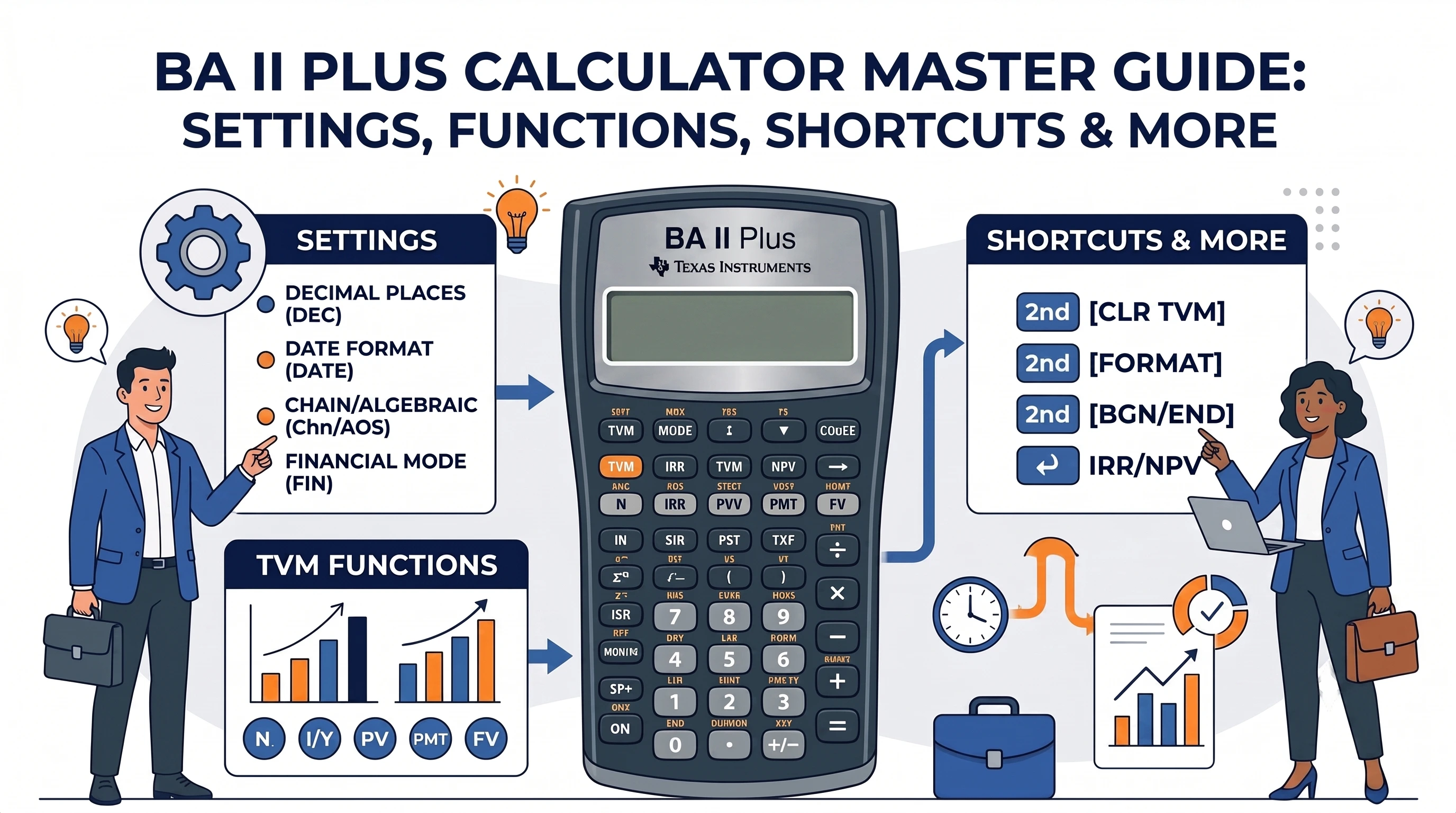
The BA II Plus calculator is an essential tool for CFA and FRM candidates. While the exams test conceptual understanding, success also depends on how quickly and accurately candidates can perform calculations under time pressure.
But, despite knowing the formulas and concepts, students often get confused with calculator inputs, settings and shortcuts during the exam.
Since BA II Plus is approved for both CFA and FRM examinations, proficiency with it is as important as mastering the curriculum itself. A strong command of the calculator helps students reduce errors, improve speed and save crucial seconds during time-pressured exams.
Here’s a detailed guide on the BA II Plus Calculator along with its shortcuts, settings, applications and the common mistakes every candidate should get familiar with.
Key Takeaways
- Calculator proficiency can significantly improve speed, accuracy, and efficiency during time-bound exams.
- The BA II Plus is designed to handle financial calculations such as TVM, NPV, IRR, bond valuation, cash flow analysis, and statistics with ease.
- One of the biggest mistakes candidates make is learning formulas without mastering the calculator workflows required to apply them efficiently.
- Understanding the right settings, shortcuts, and functions can help reduce calculation errors and save valuable exam time.
- Regular practice with the BA II Plus can provide a meaningful advantage in both CFA and FRM examinations.
What Is the BA II Plus Calculator?
Developed by Texas Instruments, the BA II Plus is a financial calculator that is exclusively designed to solve financial and investment problems efficiently. It is very different from the normal scientific calculator and is approved for:
- CFA Program examinations
- FRM examinations
- CAIA examinations
It is also widely used for investment analysis, valuation, and corporate finance calculations.
The BA II Plus Calculator is typically used for the following functions.
- Time Value of Money (TVM)
- Net Present Value (NPV)
- Internal Rate of Return (IRR)
- Bond valuation
- Cash flow analysis
- Statistics
- Regression analysis
- Depreciation calculations
Candidates preparing for CFA Level 1 should start using the calculator for Quantitative Methods and Fixed Income. By Level II, it will become a crucial tool for subjects like Equity, Fixed Income, and Corporate issuers, Portfolio Management, and Alternative Investments.
Why Do Finance Professionals Prefer It Over Scientific Calculators?
As mentioned earlier, the BA II Plus Calculator comes with built-in features for finance, which a normal scientific calculator does not have. Instead of manually plugging numbers and formulas and working through multiple steps, it lets you solve common finance problems in just a few keystrokes.
Precisely, a scientific calculator helps you calculate, while the BA II Plus helps you analyse.
A BA II Plus Calculator helps CFA and FRM aspirants in the following ways:
- Crunches Time Value of Money (TVM) problems without lengthy calculations
- Handles NPV and IRR calculations in seconds
- Solves bond valuation and yield questions effortlessly
- Works through complex cash flow problems with ease
- Performs statistical calculations without manual number crunching
- Reduces the risk of calculation errors when the clock is ticking
For time-sensitive exams such as CFA and FRM, speed and accuracy both matter. A BA II Plus calculator can solve in seconds what might take up multiple steps on a scientific calculator. It saves time for the candidates to focus on analysing their answers.
Info:
Before investing in a financial calculator or registering for your exams, make sure you meet all the program requirements by using our quick CFA & FRM Eligibility Checker.
Where Is the BA II Plus Used Beyond Exams?
Many finance professionals continue using the calculator long after clearing the CFA, FRM or university exams. It is a trusted tool for simplifying everyday financial calculations, for example:
- Investment analysis for evaluating returns, cash flows, and project viability
- Corporate finance for capital budgeting decisions using NPV and IRR
- Banking and lending for loan amortisation and payment calculations
- Fixed income analysis for bond pricing and yield calculations
- Financial planning for retirement, savings, and investment projections
- Real estate finance for mortgage and property investment analysis
While spreadsheets and financial software handle large-scale analysis, the BA II Plus remains useful for quick calculations, client discussions, interviews, meetings, and on-the-spot financial decision-making.
Its biggest advantage is simple: it allows finance professionals to arrive at reliable answers quickly without opening a spreadsheet or building a model from scratch.
Major Functions
- Time Value of Money (TVM)
- Cash Flow Analysis
- NPV and IRR
- Bond Valuation
- Depreciation
- Statistics
- Regression Analysis
- Break-even Analysis
Understanding the BA II Plus Layout
Before diving into calculations, let’s have a look at where the key functions are located and what each of these sections is intended to perform.
The Most Important Keys
These are the buttons you will use most frequently during CFA and FRM preparation and exams.
Time Value of Money Keys — the foundation of many finance calculations, from valuation to fixed income.
- N – Number of periods in the calculation.
- I/Y – Interest rate or required rate of return.
- PV – Present value of an investment or cash flow.
- PMT – Periodic payment amount.
- FV – Future value of an investment or cash flow.
Cash Flow Keys — used for uneven cash flows, capital budgeting, and investment analysis.
- CF – Enter and manage cash flow streams.
- NPV – Calculate Net Present Value.
- IRR – Calculate Internal Rate of Return.
Statistics Keys — useful for statistical analysis, averages, and standard deviation calculations.
Bond Keys — designed specifically for bond pricing and yield calculations.
Memory Keys — store and recall values to speed up calculations and reduce repetitive inputs.
Second Function Keys — unlock additional calculator functions and shortcuts through the 2nd key.
Info:
For more information about the keys, check out this CFA/FRM Calculator guide.
Understanding the 2ND Key
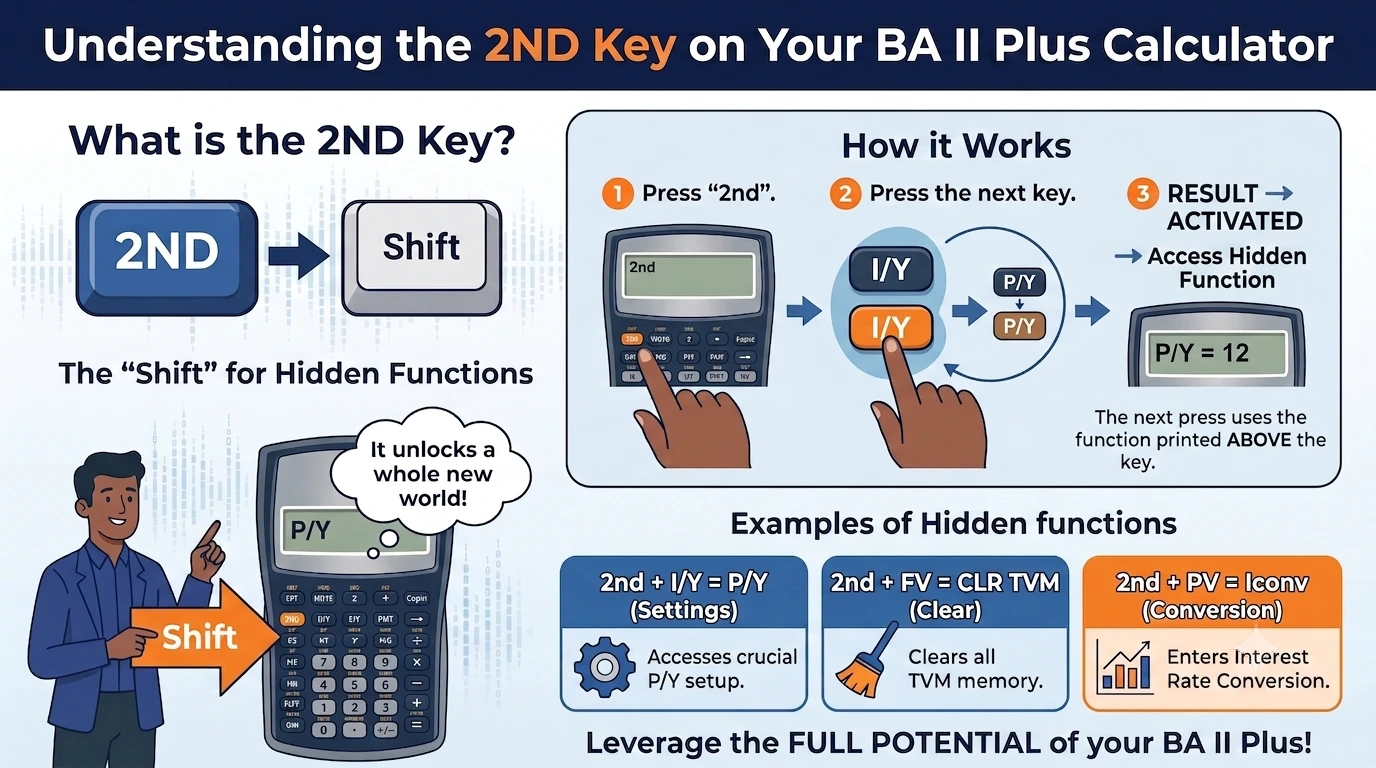
The 2ND key of the BA II Plus Calculator deserves special mention. Think of it as the calculator’s version of the Shift key on a computer’s keyboard. It unlocks a second set of functions hidden above many of the calculator’s buttons.
Whenever you press 2ND, a small “2nd” indicator appears on the screen. The next key you press will activate the function printed above that key instead of the one printed on it.
For example:
- 2ND + I/Y opens the P/Y settings
- 2ND + FV clears all TVM variables (CLR TVM)
- 2ND + 2 opens Interest Conversion functions
Without the 2ND key, you are hardly leveraging the full potential of the BA II Plus calculator.
Most Common Keyboard Mistakes Beginners Make
Despite knowing the rules and formula, students often tend to make small input mistakes, which leads to major mismatches in the answer sheet. Sometimes, even though the calculator is working, a discrepancy in the settings can cause mistakes.
The most common mistakes students make while using their calculator are mentioned here.
- Forgetting to clear previous TVM or cash flow values before starting a new question
- Using the wrong sign convention for cash inflows and outflows
- Leaving P/Y and C/Y settings unchanged from an earlier calculation
- Entering annual rates when the question requires periodic rates
- Confusing Time Value of Money functions with Cash Flow functions
- Forgetting to use the 2ND key to access secondary functions
- Using incorrect decimal or rounding settings
However, most of these mistakes are easy to avoid. It’s recommended to check the settings and inputs well in advance so that you can avoid costly mistakes during the exam.
First Things To Do After Buying Your BA II Plus
Before jumping into practice questions, spend a few minutes setting up your calculator correctly. A properly configured BA II Plus can save you from unnecessary errors later.
Check Battery Health
The BA II Plus comes with a pre-installed battery, but it’s worth ensuring the display is clear and functioning properly. A weak battery can cause display issues and slow response times.
Verify Keyboard Responsiveness
Test all major keys, especially the number keys, TVM buttons, and the 2ND key. Since you’ll be using these extensively during preparation and exams, it’s important to ensure every key responds consistently.
Configure Essential Settings
Before solving your first question, review key settings such as decimal places, payment frequency (P/Y), compounding frequency (C/Y), and calculation mode. Many incorrect answers can be traced back to incorrect settings rather than incorrect concepts.
Taking a few minutes to complete these checks will help ensure your calculator is exam-ready from day one.
The 5 Settings Every Candidate Must Check
One of the most common reasons candidates get incorrect answers on the BA II Plus is not a lack of conceptual understanding but incorrect calculator settings. So, learning the calculator workflow is a practical step for the students.
Here are the 5 settings that a candidate must check before they start using it for practising mocks or appearing for the exams.
Setting 1: Decimal Places = 6
Why It Matters
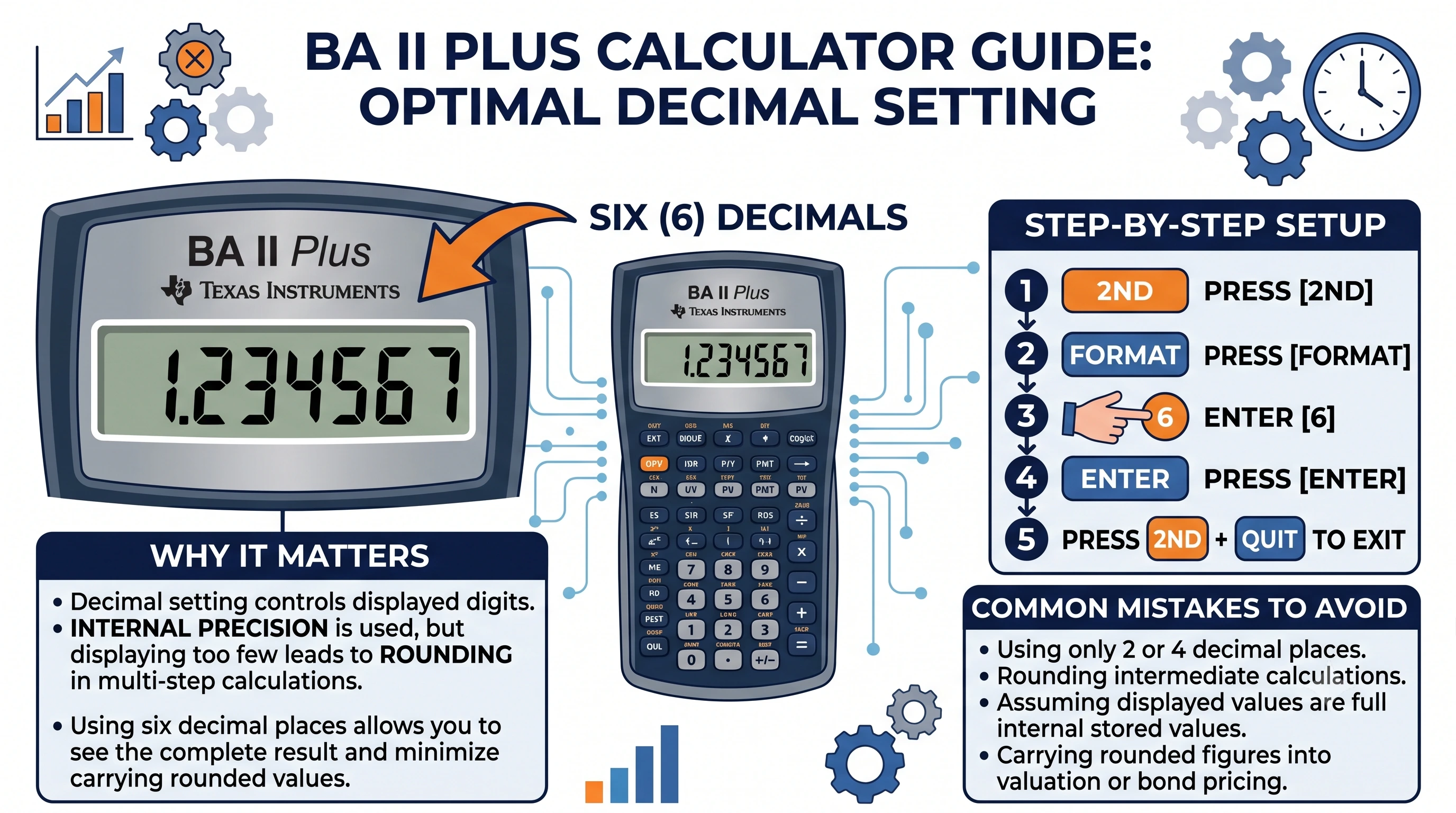
The decimal setting controls how many digits are displayed on the screen. While the calculator performs calculations using its full internal precision, displaying too few decimal places can lead to rounding errors, especially in multi-step calculations.
Using six decimal places allows candidates to see the full result and minimises the risk of rounding errors propagating into subsequent calculations.
Step-by-Step Setup
- Press 2ND
- Press FORMAT
- Enter 6
- Press ENTER
- Press 2ND QUIT
The display should now show up to six decimal places.
Common Mistakes
- Using only two or four decimal places and rounding intermediate calculations.
- Assuming displayed values are the calculator’s actual stored values.
- Carrying rounded figures into valuation or bond pricing questions.
Setting 2: P/Y = 1
Why It Matters
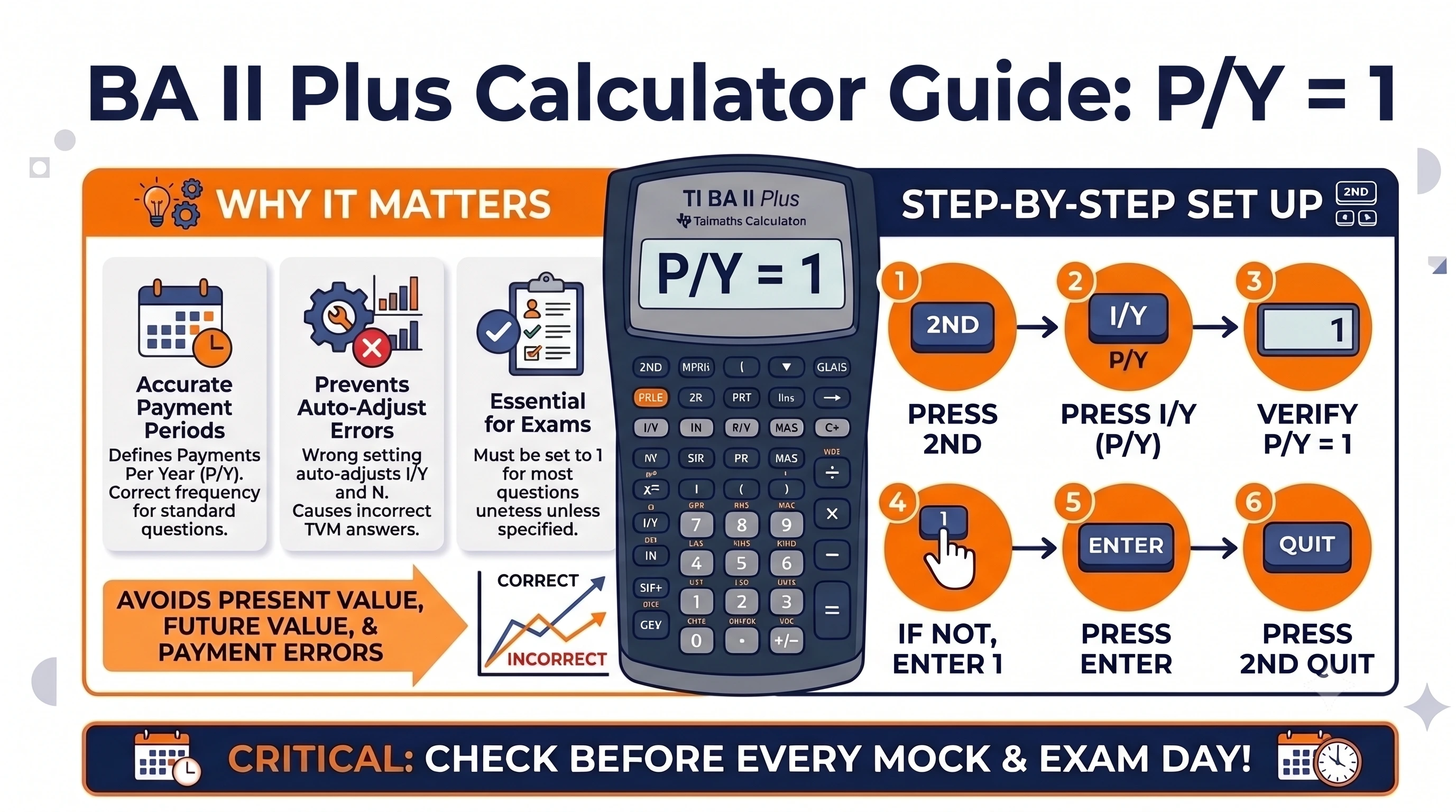
P/Y stands for Payments Per Year and tells the calculator how many payment periods occur annually. For most CFA and FRM questions, it should be set to P/Y = 1 unless stated otherwise.
A wrong P/Y setting causes the calculator to automatically adjust interest rates and periods, leading to incorrect TVM answers. This is one of the most common reasons candidates get Present Value, Future Value, and Payment calculations wrong despite entering all inputs correctly.
Step-by-step Set Up
- Press 2ND
- Press I/Y (P/Y)
- Verify P/Y = 1
- If not, enter 1
- Press ENTER
- Press 2ND QUIT
Before every mock exam and exam day, this setting should be checked.
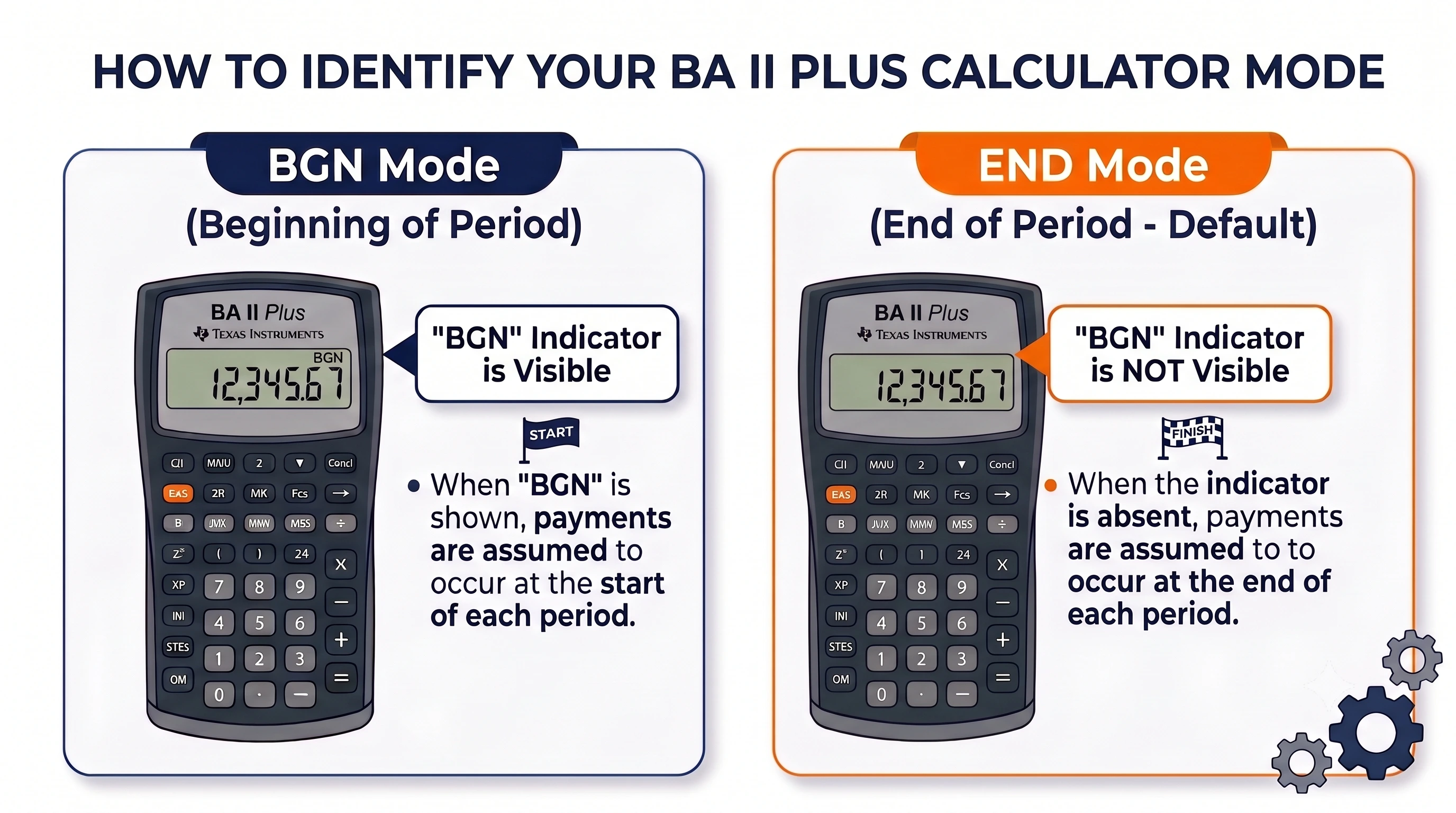
Setting 3: END Mode vs BGN Mode
Ordinary Annuity vs Annuity Due — the BA II Plus can calculate cash flows under two assumptions:
END Mode
- Payments occur at the end of each period.
- Used for ordinary annuities.
BGN Mode
- Payments occur at the beginning of each period.
- Used for annuities due.
Most CFA and FRM questions assume END mode unless specifically stated otherwise.
How to Identify Current Mode
If “BGN” appears on the screen, the calculator is in Beginning Mode.
If no BGN indicator appears, the calculator is operating in END Mode.
How to Switch Modes
- Press 2ND
- Press PMT (BGN)
- Press 2ND SET to toggle
- Press 2ND QUIT
Confirm that the BGN indicator disappears if END mode is required.
Exam Implications
A candidate can enter every TVM input correctly and still receive the wrong answer if the calculator is in the wrong mode.
This issue commonly affects:
- Retirement calculations
- Lease valuations
- Loan payments
- Annuity questions
Whenever a TVM answer looks unusual, END and BGN settings should be checked first.
How to Reset the BA II Plus Calculator
The BA II Plus stores calculator settings, worksheet values, and memory registers. Over time, incorrect settings or residual calculations can lead to unexpected answers. Resetting the calculator is often the fastest way to eliminate these issues and start with a clean setup.
Before attempting complex troubleshooting, candidates should first verify whether the calculator requires a reset. A reset restores the calculator to its factory settings.
To perform a reset:
- Press 2ND
- Press RESET
- Confirm by pressing ENTER
This removes stored values, worksheet data, and customized settings. A hard reset should be followed by a review of all exam-critical settings before solving questions.
When Should You Reset the Calculator?
A reset is useful when:
- TVM answers appear incorrect despite correct inputs
- NPV or IRR calculations produce unexpected results
- The calculator displays unfamiliar settings
- END and BGN modes appear inconsistent
- P/Y settings have been modified accidentally
- The calculator has been used by another person
- Persistent errors continue despite rechecking inputs
Many candidates perform a reset before beginning a mock exam to ensure consistent settings.
Settings to Reconfigure After Reset for Optimal Performance
A reset often changes settings that directly affect calculations. Verify the following before continuing:
- Decimal places = 6
- P/Y = 1
- C/Y = 1
- END mode selected
Even a single incorrect setting can change answers significantly.
Quick Reset Checklist
Before every mock exam or revision session:
- Clear TVM worksheet
- Clear Cash Flow worksheet
- Verify P/Y = 1
- Verify END mode
- Verify decimal display
- Test a simple TVM calculation
Spending one minute on this checklist can prevent several avoidable mistakes during the exam.
Memory Functions That Can Save Valuable Exam Time
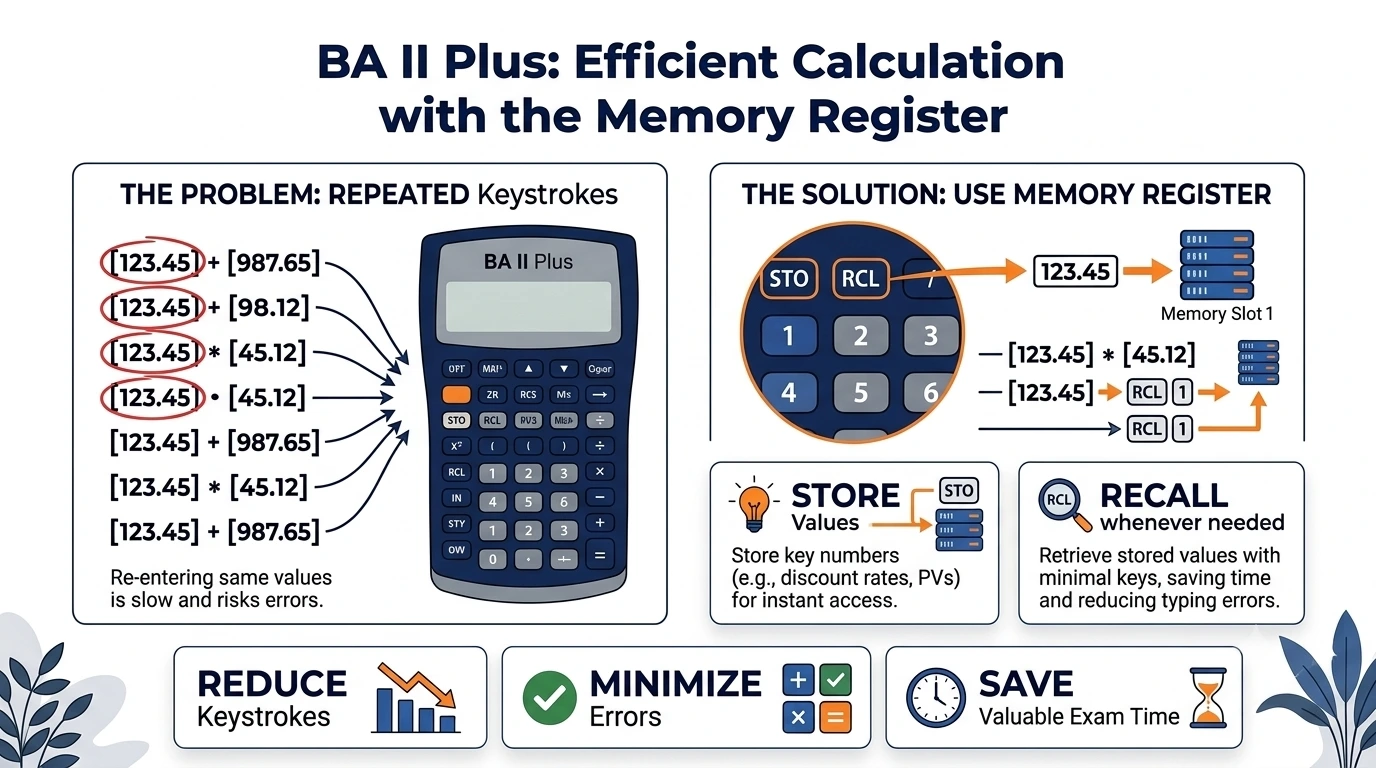
The memory functions of a BA II Plus Calculator can significantly improve efficiency during lengthy valuation and portfolio management questions.
With it, students no longer need to enter the same values over and over again. Instead, they can store the numbers and recall them whenever required. Used correctly, memory functions reduce keystrokes, minimize errors, and save valuable exam time.
Store and Recall Functions
The BA II Plus includes dedicated memory registers that allow values to be stored and retrieved whenever needed. The two most important memory commands are:
- STO (Store)
- RCL (Recall)
Together, these functions help manage multi-step calculations efficiently.
STO Key — the STO key stores a number in a memory register. For example, if a calculated discount factor will be used multiple times throughout a question, it can be stored instead of being recalculated repeatedly.
General process:
- Calculate the value
- Press STO
- Select a memory register number
The value is now saved and available for later use.
RCL Key — the RCL key retrieves a stored value. Instead of entering the number again, press RCL and select the memory register. The stored value appears instantly. This becomes particularly useful when working with lengthy decimals or multiple intermediate calculations.
Practical Applications
Memory functions become increasingly valuable with the complexity of the question.
Portfolio Weights — portfolio questions often require repeated use of:
- Asset weights
- Expected returns
- Standard deviations
- Covariances
Storing these values reduces repetitive inputs and lowers the probability of keystroke errors.
Bond Calculations — fixed income questions frequently require:
- Bond prices
- Coupon payments
- Yield figures
- Duration estimates
Storing intermediate values can speed up valuation and sensitivity calculations.
Multi-Step Valuation Questions — DCF and capital budgeting questions often involve:
- Discount factors
- Present values
- Cash flow totals
- Terminal values
Memory registers allow these values to be reused throughout the solution process.
How to Use Memory Registers Efficiently
A structured approach improves the usage efficiency of memory registers. For example:
- Register 1 = Discount Rate
- Register 2 = Growth Rate
- Register 3 = Terminal Value
- Register 4 = Present Value
- Register 5 = Portfolio Return
Maintaining a consistent system helps avoid confusion during long calculations. Candidates should practice memory usage during question solving rather than attempting it for the first time on exam day.
Common Memory Mistakes
The most frequent errors include:
- Forgetting which register contains which value
- Overwriting important calculations accidentally
- Recalling outdated values from previous questions
- Using memory registers without clearing them between problems
To avoid these issues, one can:
- Use a consistent storage structure
- Clear registers when changing questions
- Double-check recalled values before using them
When used correctly, memory functions can be among the most effective speed-enhancement tools available on the BA II Plus calculator.
BA II Plus Exam-Day Checklist
One Week Before the Exam
- Check battery
- Verify settings
- Practice keystrokes
One Day Before the Exam
- Recheck settings
- Reset if required
On Exam Morning
- Decimal places = 6
- P/Y = 1
- END mode verification
Should You Carry a Backup Calculator on Exam Day?
Yes. It is one of the simplest ways to avoid unnecessary stress on exam day. Calculator failures are rare, but a drained battery, unresponsive key, or accidental damage can happen when least expected. Having a backup calculator can save your day, if required.
Conclusion
The BA II Plus is more of a performance tool in exams where every minute counts. Calculator proficiency can be the real differentiator between knowing the answer and getting to it on time.
Start practising with the BA II Plus early, so that you develop a habit and build calculator confidence alongside concept mastery. The combination of strong fundamentals and fast execution can give you an edge in your CFA or FRM journey.
Info:
Need help with exam preparation beyond calculators? Explore Aswini Bajaj Classes’ CFA and FRM programs for structured learning, expert mentorship, and exam-focused guidance.
FAQs
Q: Is BA II Plus allowed in CFA and FRM exams?
A: Yes. The Texas Instruments BA II Plus and BA II Plus Professional are approved for both CFA and FRM examinations. It is one of the most widely used financial calculators among finance candidates worldwide.
Q: Why am I getting incorrect answers on the BA II Plus?
A: Incorrect TVM answers are usually caused by wrong settings, especially P/Y not set to 1, incorrect cash flow signs, or being in BGN mode. Always verify your settings and clear old worksheet values before solving questions.
Q: How do I clear the BA II Plus calculator memory?
A: Press 2nd, then RESET, then ENTER to reset the calculator to factory settings. This helps eliminate hidden values that may interfere with calculations.
Q: How do I switch between END and BGN mode on the BA II Plus?
A: Press 2nd, then BGN, and check whether BGN appears on the screen. For most CFA and FRM questions, the calculator should be in END mode unless payments occur at the beginning of each period.
Q: BA II Plus vs HP 12C: which is better?
A: For most CFA and FRM candidates, the BA II Plus is easier to learn because it uses standard algebraic input. The HP 12C is powerful but relies on Reverse Polish Notation (RPN), which has a steeper learning curve for beginners.